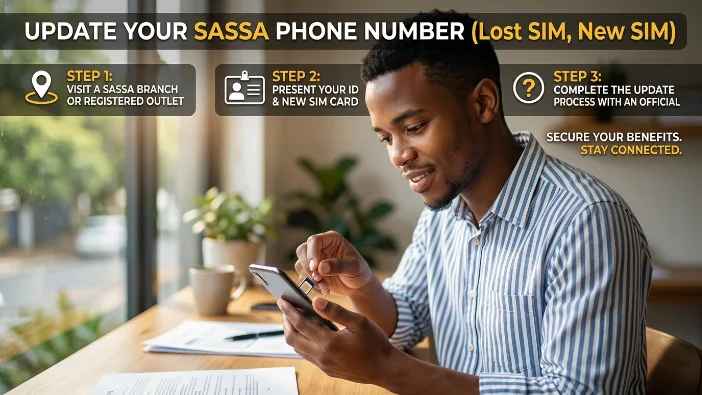
Your registered cellphone number is the key to your entire SASSA SRD R370 grant account. Without it, you cannot check your status, receive OTPs for banking updates or appeals, get payment notifications, or complete identity verification. If that number has changed, been lost, or been stolen, updating it immediately is the single most important action you can take to protect and maintain your grant.
This guide covers every situation — new SIM, lost SIM, number captured incorrectly, applied on someone else’s phone, and fraud — with the exact steps for each, how to find your Application ID if you have lost it, and what to do when the online process is blocked.
Quick Answer: SASSA SRD Phone Number Change at a Glance
| Detail | Information |
|---|---|
| Official update page | srd.sassa.gov.za/sc19/mobile-number-update |
| What you need | 13-digit ID number + reason for change |
| Application ID needed? | No — the 2026 portal uses ID number only |
| Cost | Free — no fee at any step |
| Processing time | Under 48 hours online; up to 5 working days via SASSA office |
| Maximum one request per day | Yes — one update per ID per 24 hours |
| Does it affect payments? | No — changing your number does not change your banking details or payment dates |
| Lost SIM and cannot receive OTP | Use the Lost Phone reason option — different verification method |
Why Your Registered Phone Number Matters So Much
Every secure action on your SASSA SRD account goes through your registered cellphone number:
- Status check login on srd.sassa.gov.za
- OTP verification for banking detail updates
- OTP verification for appeal submissions
- eKYC biometric verification link delivery
- Payment notification SMS
- SASSA fraud alert notifications
If your registered number is wrong, inactive, or in someone else’s hands, you are locked out of all these functions and your grant payments are at risk of being misdirected.
The 4 Reasons SASSA Accepts for a Phone Number Change
When you open the official update page, you select one of four reasons from a dropdown. Choose the one that matches your situation exactly — the verification method changes depending on which reason you select.
Reason 1 — New phone: You still have access to your old registered number but want to switch to a new number. This is the simplest path.
Reason 2 — Captured number wrong: There is a typo in the number that was registered — for example, one digit was entered incorrectly when you first applied. You may not have access to the wrong number at all.
Reason 3 — Used third-party phone: You applied for the SRD grant using someone else’s phone and their number is the one on your account. You now want to move it to a number you own.
Reason 4 — Lost phone: Your SIM card or phone has been lost, stolen, or deactivated by your network provider. You cannot receive an OTP on the old number.
Step-by-Step: How to Change Your SASSA SRD Phone Number Online
Step 1 — Go to the Official Page
Open any browser and go directly to:
srd.sassa.gov.za/sc19/mobile-number-update
This is the correct page for 2026. Do not use srd.sassa.gov.za/sc19/contact — that page requires an Application ID. The mobile-number-update page uses your ID number only and is the most current version of the form.
Safety check: Confirm the address bar shows exactly srd.sassa.gov.za before entering any information.
Step 2 — Enter Your 13-Digit ID Number
Type your South African ID number carefully — 13 digits, no spaces, no dashes. This is the only identifier required to start the process. The 2026 portal does not ask for an Application ID at this stage.
Step 3 — Select Your Reason for the Change
A dropdown appears with the four reasons listed above. Select the one that matches your situation. This selection determines which identity verification method the system will use in the next step.
Step 4 — Complete Identity Verification
After selecting your reason, the system runs an identity check to confirm you are the real account holder. The method depends on your reason:
For “New phone” and “Used third-party phone”: A face scan (eKYC liveness check) is triggered. SASSA sends a link via SMS to your old registered number. Click the link and complete the facial scan in your browser — no app download needed. The scan is processed by iidentifii, embedded within the SASSA portal.
For “Lost phone”: Because you cannot receive an SMS on the old number, a different verification method is used. You are asked to enter the last 4 digits of your bank account number linked to your SRD profile. This confirms you are the genuine account holder without needing the old SIM.
For “Captured number wrong”: SASSA assesses this case-by-case. You may be asked for the last 4 digits of your bank account, or a biometric face scan link may be sent to the email address on your profile if you registered one.
If identity verification keeps failing: Do not attempt it repeatedly in quick succession. One failed attempt per session is enough — repeated attempts can temporarily lock the process. Wait and try again the next day, or proceed to the SASSA office option below.
Step 5 — Enter Your New Phone Number
Once verified, a field appears for your new cellphone number. Enter a South African mobile number starting with 0 — 10 digits total. Landline numbers are not accepted.
The new number must:
- Be active and able to receive SMS
- Be registered in your own name (RICA’d)
- Not already be linked to another SASSA SRD application
If the portal shows “number already linked to another application”: This means the new number you entered is already registered on a different SRD account. This happens with recycled SIM cards — a number that previously belonged to someone else may still be in SASSA’s database. Call 0800 60 10 11 to have the old link removed before you can use that number.
Step 6 — Receive and Enter the OTP on Your New Number
SASSA sends a one-time PIN to your new number. Enter it promptly — OTPs expire within a few minutes. This step confirms that the new number is in your possession.
Step 7 — Submit and Save Your Confirmation
Click Submit. A confirmation message appears on screen and SASSA sends a confirmation SMS to your new number.
Take a screenshot of the confirmation screen. Processing is typically completed within 48 hours for online submissions. SASSA allows only one update request per ID number per 24 hours — do not submit again before that window has passed.
What to Do If You Lost Your SIM and Cannot Receive an OTP
This is the most common and most stressful phone number situation for SRD beneficiaries. The key point is that you do not need access to your old number to change it — you just need to select the correct reason.
Online path (Lost phone):
- Go to srd.sassa.gov.za/sc19/mobile-number-update
- Enter your 13-digit ID number
- Select “Lost phone” from the dropdown
- When prompted, enter the last 4 digits of the bank account linked to your SRD profile
- Enter your new active number
- Receive OTP on your new number and verify
- Submit
If you do not know or remember your bank account details: Go to the SASSA office option below — in-person verification is the correct path when you cannot complete the bank-last-4 step.
SIM swap at your network provider: Before trying the SASSA portal, check if your network provider can do a SIM swap for your old number onto a new SIM card. If the original number is still active in the network database (not yet recycled), you may be able to recover it at a Vodacom, MTN, Cell C, or Telkom store with your ID. A recovered number means you skip the SASSA update entirely.
If the network says the number has been deactivated and reassigned: It cannot be recovered. Proceed with the SASSA portal Lost Phone path or visit a SASSA office.
How to Find Your Application ID (AppID) If You Need It
Some older pages and some SASSA helpline agents still ask for a 6-digit Application ID. Here is how to retrieve it:
Method 1 — Status portal: Go to srd.sassa.gov.za/sc19/status. Enter your ID number and any phone number you have access to. If the system recognises your ID, your Application ID appears alongside your status results. Write it down immediately.
Method 2 — Original confirmation SMS: When you first applied, SASSA sent a confirmation SMS containing your Application ID. Search your message history for messages from “SASSA” or “SRD” dating back to when you applied.
Method 3 — SASSA office: Visit your nearest SASSA office with your original ID document. A SASSA representative can retrieve your Application ID from the system using your ID number alone — no additional documents required.
In-Person Option: Changing Your Number at a SASSA Office
If the online process is blocked, failing, or not possible due to limited internet access, visit your nearest SASSA office in person.
What to bring:
- Your original South African ID document (Smart ID card or green ID book) — copies are not accepted
- Your new active SIM card or phone number written down
What happens at the office: A SASSA representative accesses your account using your ID number, verifies your identity in person, and updates your registered phone number in the system. You may also be directed to a digital kiosk at the office to complete the process yourself with staff assistance.
Processing time: Up to 5 working days from the date of the in-person visit. In high-demand periods, this can extend to 40 working days. If you have a payment date approaching, mention this to the SASSA representative so they can flag your case for priority processing.
What to Do If Someone Changed Your SASSA Number Without Your Permission
Unauthorized phone number changes are a form of grant fraud. If your registered number was changed without your consent — for example, you stopped receiving SASSA SMSs and your payments went missing — act immediately.
Step 1 — Check for the SASSA confirmation SMS: When any number change is processed, SASSA sends an SMS to the original registered number containing a personalised link in the format srd.sassa.gov.za/sc19/[unique code]. If you still have the old number or access to it, check your messages for this SMS.
Step 2 — Click the link to freeze the change: Open the link in the SMS and enter your ID number. By submitting, you confirm to SASSA that the change was made without your consent. You will receive a notification: “Successfully submitted unauthorized cell phone number change report to SASSA.” This freezes the unauthorized change.
Step 3 — If you cannot find the SMS: Go to srd.sassa.gov.za/sc19/auth — the official unauthorized change reporting page. Enter your ID number and confirm that the change was made without your permission.
Step 4 — Call SASSA immediately: Call 0800 60 10 11 and tell the agent your registered phone number was changed without your permission. Ask them to flag your account for fraud review and block any payments to the changed number.
Step 5 — Visit a SASSA office: Visit your nearest SASSA office with your original ID document. Ask for an in-person identity verification and request that your account be reviewed for unauthorized access. Bring any supporting information — dates when you stopped receiving SMSs, payment amounts you did not receive.
Step 6 — Open a SAPS case: Report the fraud at your nearest police station and obtain a case number. SASSA may request this case number during the fraud investigation. Also contact your bank and mobile network provider in case a linked SIM swap was used as part of the fraud.
After the number is restored: Check your banking details immediately at srd.sassa.gov.za/sc19/banking-details-update. Fraudsters who change your number often also change your banking details to redirect payments. Verify that your bank account information is still correct.
How Long Does the Phone Number Change Take?
| Method | Processing Time |
|---|---|
| Online — standard (new phone, third-party phone) | Under 48 hours after SASSA’s risk check |
| Online — lost phone path | Under 48 hours after verification |
| SASSA office visit | Up to 5 working days; up to 40 in busy periods |
| Unauthorized change report | Freeze is immediate; full restoration varies |
After the change is processed, you can use your new number for all SRD portal actions — status checks, OTP steps for appeals, banking detail updates, and eKYC verification links.
Important: Changing your phone number does not affect your payment dates, banking details, grant eligibility, or monthly verification. Only your contact information changes.
Common Problems and Exact Fixes
| Problem | Cause | Fix |
|---|---|---|
| “Number already linked to another application” | New number is on another SRD account | Call 0800 60 10 11 — ask for the link to be removed |
| OTP not arriving on new number | Number not RICA’d, no signal, or inactive SIM | Confirm SIM is active and RICA’d. Restart phone and retry |
| Identity verification keeps failing | Face scan issue or bank details mismatch | Wait 24 hours and retry. Visit SASSA office if it continues |
| Portal shows “record not found” | ID number entered incorrectly | Re-check ID number character by character |
| Confirmation SMS not received after submission | Delay in system processing | Wait 24 hours. Check at srd.sassa.gov.za/sc19/status |
| Number was changed but payments still not arriving | Banking details may also have been changed | Check banking details at srd.sassa.gov.za/sc19/banking-details-update |
| Lost SIM, cannot do bank-last-4 step | No access to banking details | Visit SASSA office in person with original ID |
| Online portal not loading | High traffic or maintenance | Try again later or use SASSA helpline |
Frequently Asked Questions
How do I change my SASSA SRD phone number in 2026?
Go to srd.sassa.gov.za/sc19/mobile-number-update, enter your 13-digit ID number, select your reason for the change, complete identity verification, enter your new number, verify with the OTP, and submit. Processing takes under 48 hours online. The process is free.
Do I need an Application ID to change my SASSA SRD phone number?
No. The 2026 portal at srd.sassa.gov.za/sc19/mobile-number-update uses your 13-digit ID number only. Application IDs are no longer required for the phone number update process online.
What do I do if I lost my SIM card and cannot receive the OTP?
Select “Lost phone” as your reason on the update page. You will be asked to enter the last 4 digits of the bank account linked to your SRD profile instead of receiving an OTP on the old number. If you do not have bank details, visit a SASSA office in person with your original ID document.
How long does it take to change my SASSA SRD phone number?
Online changes are processed within 48 hours after SASSA’s risk check. In-person SASSA office changes take up to 5 working days, sometimes up to 40 working days during busy periods.
Someone changed my SASSA phone number without my permission — what do I do?
Check your old phone messages for a SASSA SMS containing a personalised link and click it to freeze the change. If you cannot find the SMS, go to srd.sassa.gov.za/sc19/auth and enter your ID number to report the unauthorized change. Then call 0800 60 10 11 immediately and visit your nearest SASSA office with your ID.