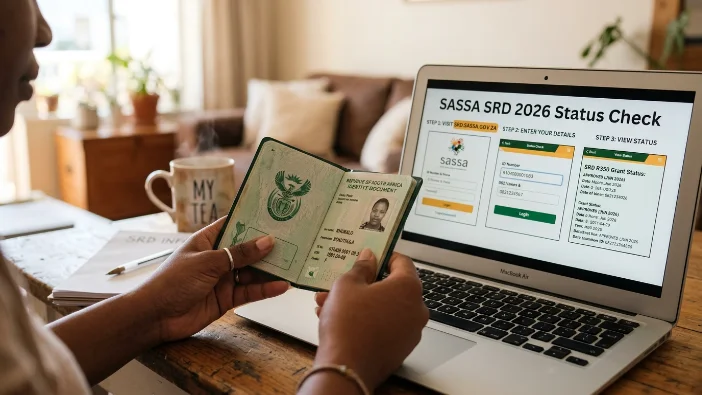
Checking your SASSA SRD R370 status only requires two things: your 13-digit South African ID number and the cellphone number you used when you applied. You do not need a password, a reference number, or any documents.
This guide walks you through the entire process screen by screen — exactly what you see, exactly what to type, and exactly what each result means — so there is no confusion at any step.
What You Need Before You Start
Before opening the portal, have these two things ready:
1. Your 13-digit South African ID number This is the number printed on your green ID book or Smart ID card. It is 13 digits long. Example format: 9001015009087. Do not add spaces or dashes when typing it.
2. Your registered cellphone number This is the number you used when you first applied for the SRD grant. It must be the same number — even if you have since changed your SIM or phone. If you have a new number, you must update it first before you can check your status.
You do not need:
- A password or PIN
- A reference number
- Your bank details
- Any documents or photos of your ID
Step-by-Step: How to Check Your SASSA SRD Status by ID Number
Step 1 — Open the Official Portal
Open any browser on your phone or computer and go to:
srd.sassa.gov.za
What the screen looks like: The SASSA SRD home page loads with a blue and green header showing the SASSA logo. You will see menu options including “Application Status,” “Apply,” “Appeals,” and others across the top or in a hamburger menu on mobile. The page background is white with a few large buttons in the centre.
⚠️ Safety check before you type anything: Look at the address bar at the top of your browser. It must show exactly srd.sassa.gov.za — nothing before “srd” except “https://”. If the address shows anything different, close that tab immediately. You are on a fake website.
Step 2 — Click “Application Status”
On the home page, click or tap the button that says “Application Status” or “Check Your Status.”
What the screen looks like: A new page loads with a simple white form in the middle of the screen. You will see two blank text fields — one for your ID number and one for your cellphone number — and a green or blue Submit button below them.
The page heading reads something like: “SRD R370 Grant Application Status” or “Check Your Application Status.”
Step 3 — Enter Your ID Number
Click or tap inside the first text field (labelled “ID Number” or “South African ID Number”).
Type your 13-digit ID number exactly as it appears on your ID document. No spaces. No dashes. No letters.
Example of what to type: 9001015009087
Common mistakes to avoid:
- Do not type 13 digits with a space in the middle
- Do not add a dash between numbers
- Do not type your passport number — only your South African ID number works
- If you type the wrong ID number, the portal will show “No application found” even if you have applied
Step 4 — Enter Your Registered Cellphone Number
Click or tap inside the second text field (labelled “Cell Number” or “Mobile Number”).
Type the cellphone number you used when you first applied for the SRD grant. Start with 0 — for example: 0821234567.
Important: This number must be the exact number linked to your SRD application. If you have changed your number since applying, the portal will not recognise you. You will need to update your number first at srd.sassa.gov.za/sc19/contact before you can check your status.
Do not type the country code (+27 or 27). Just type the 10-digit number starting with 0.
Step 5 — Click Submit
Once both fields are filled in correctly, click or tap the Submit button.
What happens next: The portal sends a request to SASSA’s verification system. This usually takes 3 to 10 seconds. You may see a loading spinner or the page may appear to refresh. Do not press Submit again while it is loading — wait for the results to appear.
If the page times out or shows an error, it usually means the portal is under high traffic. Try again later in the day — evenings and weekends are typically quieter.
Step 6 — Read Your Results Screen
After clicking Submit, a results page loads showing your status for each month. This is the most important screen.
What the results screen looks like: A list of months appears — for example, April 2026, May 2026, June 2026, July 2026 — each with a status result next to it. The current month is usually shown at the top or highlighted.
For each month you will see one of these results:
✅ Approved Shown in green text next to the month. Below it you will see:
- Your payment date — the specific date your R370 will be released
- Your payment method — bank account, retailer name, or Post Office
If you see Approved with a payment date, you are done. Make a note of your date and collect on or after that day.
⏳ Approved — No Payment Date Yet You are approved for this month but your payment batch has not been processed yet. Check again in 24 to 48 hours. The date will appear once your batch runs.
🕐 Pending / Period Pending Your application is still being verified for this month. No action is needed. Check back in 3 to 5 days.
❌ Declined Your application did not pass one or more eligibility checks this month. Below the word “Declined” you will see the specific reason — for example: “Means Income Source Identified” or “Identity Verification Failed.” Read the reason carefully. Each reason has a different fix.
🔁 Referred Your application has been sent for manual review. Check your SMS inbox for a verification link from SASSA. If you have not received one, call 0800 60 10 11.
📋 Reapplication Required Your application has lapsed. Go to srd.sassa.gov.za and submit a fresh reapplication.
Step 7 — Take a Screenshot of Your Results
Before closing the page, take a screenshot of your results screen. This gives you:
- A record of your payment date so you do not forget it
- Proof of your status if there is a problem at a pay point
- The exact wording of your decline reason if you need to appeal
How to screenshot on Android: Press the Volume Down and Power buttons at the same time. How to screenshot on iPhone: Press the Side Button and Volume Up button at the same time. How to screenshot on a basic phone: Check your phone’s manual — most have a dedicated screenshot shortcut.
What to Do With Your Results — Quick Decision Guide
| Result You See | Next Step |
|---|---|
| Approved + payment date shown | Go collect on or after your payment date. Do not go before |
| Approved + no payment date | Check again in 24 to 48 hours |
| Pending or Period Pending | Wait 3 to 5 days and check again. Do not reapply |
| Declined + reason shown | Note the exact reason. Submit appeal at srd.sassa.gov.za/appeals within 90 days |
| Referred | Check SMS for eKYC verification link. Call 0800 60 10 11 if none received |
| Identity Verification Required | Act immediately — complete selfie verification via SMS link within 72 hours |
| Reapplication Required | Submit new reapplication at srd.sassa.gov.za |
| No application found | Double-check ID number and phone number. Visit SASSA office if details are correct |
Troubleshooting: Common Problems on the Status Check Screen
Problem: “No application found” or “No results” This appears when the ID number or phone number entered does not match any SRD application on SASSA’s system. Double-check both fields. Make sure your phone number is the one you used when you first applied — not your current number if you have changed it.
Problem: Page is blank or not loading The SRD portal receives its highest traffic between 8am and 11am, especially on payment days. Try again in the evening or use USSD 12069277# which is faster and does not depend on internet speed.
Problem: “Too many requests” error This means too many people are checking the portal at the same time. Wait 30 to 60 minutes and try again. Do not click Submit repeatedly — it will not help and may lock you out temporarily.
Problem: OTP not received Some status checks require an OTP verification step. If the OTP SMS does not arrive within 2 minutes, check that you entered the correct phone number. If the number is correct, try requesting the OTP again. If it still does not arrive, contact SASSA on 0800 60 10 11.
Problem: Status shows results for old months but not the current month Current month results appear once SASSA starts running verification batches — usually in the first week of the month. If the current month is not showing yet, check again after the 5th of the month.
Problem: Status was Approved last month but shows Pending this month This is normal. SASSA reassesses every applicant from scratch every month. A new Pending at the start of the month does not mean your grant has been cancelled. Wait for the verification to complete.
How to Check Someone Else’s SASSA Status (Family Member or Elder)
You can check another person’s SASSA SRD status using the same portal — as long as you have their 13-digit ID number and the cellphone number they used to apply.
This is commonly done by:
- Adult children checking for elderly parents who do not have smartphones
- Caregivers checking for beneficiaries in their care
- Family members helping someone who cannot access the portal themselves
Enter their ID number and their registered phone number — not yours. The results shown are for their application.
Important: Do not share anyone else’s status results publicly or post screenshots containing their personal information. This could violate the Protection of Personal Information Act (POPIA).
How to Check Your Status If the Website Is Down
If srd.sassa.gov.za is not loading, use these backup methods — all pull from the same SASSA database:
USSD — no internet needed: Dial *120*69277# from any mobile phone. Follow the prompts. Enter your ID number when asked. Your status appears on screen within seconds.
WhatsApp: Send “Hi” to 082 046 8553 on WhatsApp. Follow the automated menu. Enter your ID number when prompted.
Helpline: Call 0800 60 10 11 (free, Monday to Friday, 8am to 4pm). Have your ID number and registered phone number ready.
Frequently Asked Questions
How do I check my SASSA SRD status using my ID number?
Go to srd.sassa.gov.za, click “Application Status,” enter your 13-digit ID number and the cellphone number you used to apply, then click Submit. Your status for each month appears within seconds. No password or reference number is needed.
What does the SASSA SRD status check screen look like?
The status results screen shows a list of months — such as May 2026, June 2026, July 2026 — each with a status result next to it. Approved shows in green with a payment date. Pending shows while verification is still running. Declined shows with a specific reason below it.
Why does my SASSA status check show “no application found”?
This appears when either your ID number or your registered phone number does not match SASSA’s records. Check that you are entering the exact phone number you used when you first applied — not a new number. If both details are correct and you still see this, visit a SASSA office with your ID.
Can I check my SASSA status without a phone number?
No. The SRD status portal requires both your ID number and your registered phone number. You cannot check status with only an ID number. If you have lost access to your registered phone number, update it first at srd.sassa.gov.za/sc19/contact or visit a SASSA office.
What is the correct website to check SASSA SRD status?
The only official website is srd.sassa.gov.za. The direct status check page is srd.sassa.gov.za/sc19/status. Any other website asking for your ID number and phone number to check SASSA status is unofficial and potentially a scam.